Graph View
Visualize connections between your notes with wiki links
The Graph View provides a visual representation of your notes and their connections through wiki links. Press Ctrl+g to open the graph.
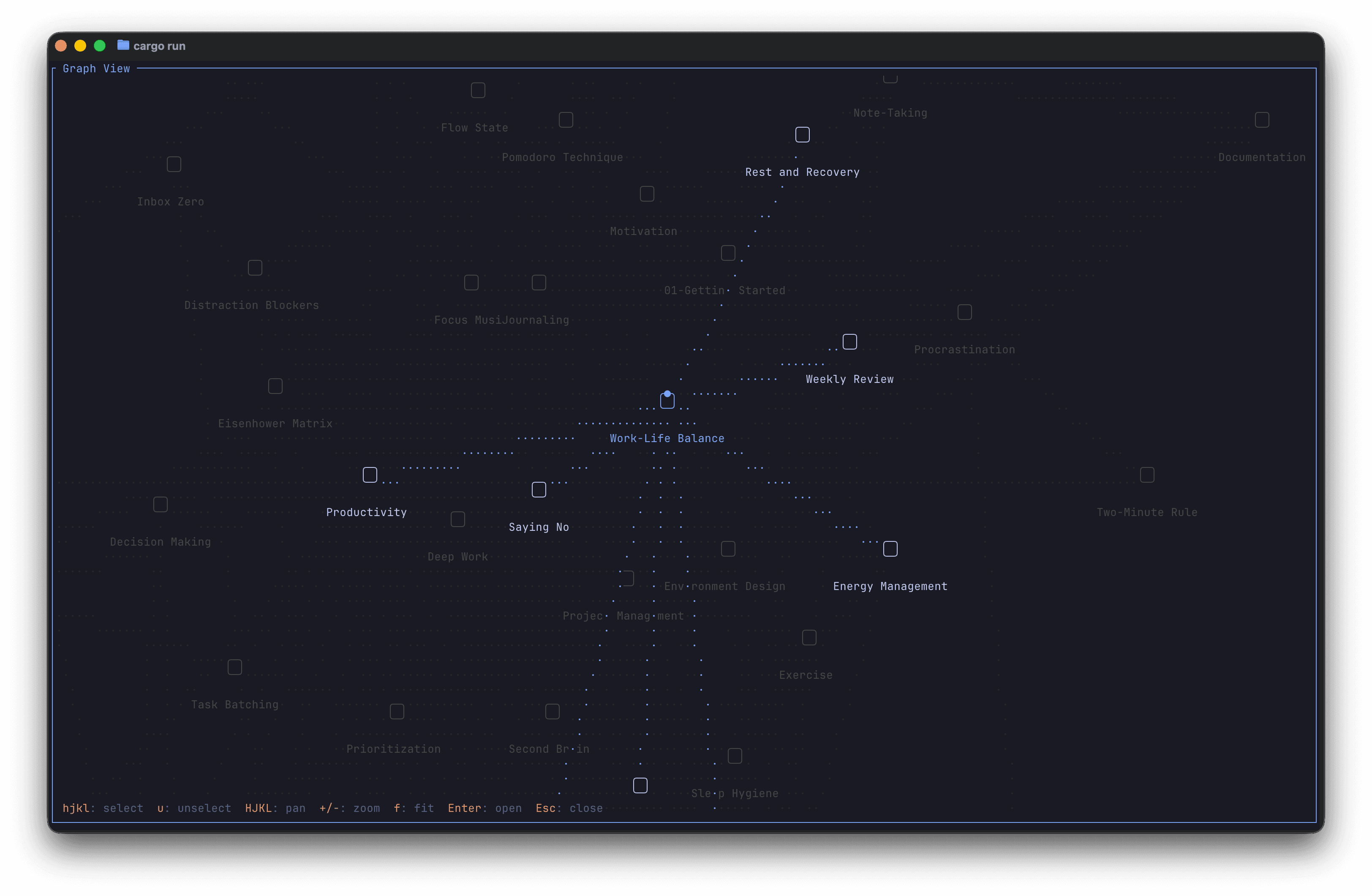
Overview
The graph displays:
- Nodes: Each note in your vault appears as a small square with its title below
- Edges: Dotted lines connecting notes that link to each other via
[[wiki links]] - Selection highlighting: When a node is selected, its connected edges are highlighted
The graph uses a force-directed layout that automatically positions notes based on their link relationships, with connected notes pulled closer together.
Navigation
| Key | Action |
|---|---|
h / l | Select node left/right |
j / k | Select node down/up |
g | Select first node |
G | Select last node |
u | Unselect current node |
Enter | Open selected note |
Esc | Close graph view |
Panning & Zoom
| Key | Action |
|---|---|
H | Pan left |
J | Pan down |
K | Pan up |
L | Pan right |
+ / = | Zoom in |
- | Zoom out |
f | Fit graph to screen |
0 | Reset zoom to 100% |
Moving Nodes
You can manually reposition nodes to customize your graph layout:
| Key | Action |
|---|---|
Ctrl+h | Move selected node left |
Ctrl+j | Move selected node down |
Ctrl+k | Move selected node up |
Ctrl+l | Move selected node right |
Mouse Controls
| Action | Result |
|---|---|
| Click node | Select the node |
| Drag node | Move the node |
| Drag background | Pan the view |
| Scroll up | Zoom in |
| Scroll down | Zoom out |
Understanding the Layout
The graph uses a force-directed algorithm that:
- Attracts linked notes: Notes connected by wiki links are pulled closer together
- Repels overlapping nodes: Nodes push away from each other to avoid overlap
- Balances the layout: The algorithm finds an equilibrium where forces are balanced
The layout calculates when you open the graph view and automatically fits to screen. Manual node movements will push nearby nodes away to prevent overlap.
Tips
- Use wiki links (
[[note name]]) to create connections between notes - The graph helps identify orphan notes (no connections) and hub notes (many connections)
- Press
Enteron any node to quickly jump to that note